Lesson 1
Random Shapes
← Back to Home
In this lesson, you'll make shapes that change position, color, and size randomly.

1. The Canvas
To learn p5.js, you'll tinker in little windows like the one below. Remember, you can't break anything!
Tinker
Click ▶Play to run the code below.
Then explore the 3 numbers — 250, 200, and 0! Change them one at a time, clicking ▶Play after each change.
What does each number do? What does each command do?
Hints: Use numbers between 0 and 200, for now. You can learn more about these commands by clicking Canvas Help below.
2. Mistakes
Tinker
Let's make some mistakes on purpose, just to see what happens.
Try deleting the comma between the 2 numbers in createCanvas. Then click ▶Play. What happens?
Click Revert to reset. Delete a parenthesis ( ), and click ▶Play. What happens?
Click Revert to reset. Add a space between create and Canvas. What happens?
Write createcanvas in lowercase letters. What happens?
3. Color
Let's add color to our drawing!
Tinker
Click ▶Play.
You'll see a yellow background. It's created by the commands
colorMode(HSB)
and background(51, 100, 100).
You can learn more about these commands by clicking Color Help below.
To add your own colors, go to HSB Color Picker,
adjust the sliders, and then copy the 3 numbers for your color
into background below.
Be sure to copy them in order!
And remember to click ▶Play. 🙂
4. Ellipse
Finally, let's draw a shape! We'll add an ellipse, also called an oval.
Tinker
Click ▶Play.
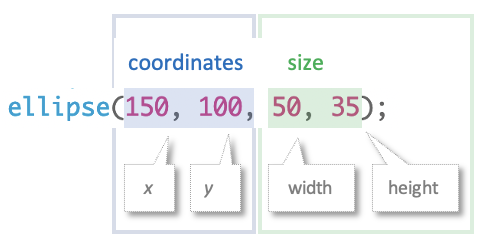
You'll see a white ellipse (oval) created by the ellipse(150, 100, 50, 35) command.
Explore the 4 numbers in ellipse! Change them one at a time, clicking ▶Play after each change.
What does each number do?
Can you make a circle? A oval that fills touches all the edges?
Can you make TWO ellipses? more?
Hint: In ellipse, use numbers between 0 and 200, for now.
5. Color the Ellipse
Tinker
Click ▶Play.
The ellipse has changed color, and it has a thick outline as well.
These changes come from the stroke, strokeWeight, and
fill commands.
Change numbers in these commands one at a time, clicking ▶Play after each change.
What does each command do? What does each number do?
Try using all that you've learned to make a snowman or an emoji face!
6. Random Gray Backgrounds
Tinker
Click ▶Play, several times.
The ellipse and the color are both gone (for a moment), but each time you click, the background changes to a different shade of gray.
These changes come from random(255),
which produces a random number between 0 and 255.
Remember that when background has a single argument, it creates gray colors
from black (0) to white (255).
When we tuck random(255) into
background( random(255) )
then we send background a different number from 0-255 each time the script runs,
and each time we see a different color gray.
7. Random Color
Tinker
Click ▶Play, several times.
Each time you click, the background changes color randomly.
The colors come from the command:
background( random(255), 100, 100 )
which randomly changes hue each time the script runs.
(If you can't see the whole background command, click ■ Stop to show all the code.)
Try these challenges:
Make the fill random.
Make the stroke random.
Make the strokeWeight random.
And most fun of all, change the ellipse position and size randomly.
8. setup() and draw()
Tinker
Click ▶Play. You'll see dozens of ellipses!
Where did they come from?
Notice that the script has been divided into two sections called
function setup() and function draw().
The commands in function setup() happen once, as soon as you click ▶Play.
But the command in function draw() happens over and over, endlessly,
creating infinite ellipses at random positions.
Try these challenges:
Change the ellipse command to draw ellipses with random sizes.
Draw randomly-colored ellipses by adding commands in function draw().
Be sure to add them above the ellipse command.
9. More Mistakes!
Tinker
Let's make more mistakes on purpose, just to see what happens.
Use the keyboard to cut and paste when necessary; click More Mistakes Help for the keys to press.
Right-clicking won't work!
Try these challenges:
Delete a curly brace { or }. Click ▶Play. What happens?
Delete the word function Click ▶Play. What happens?
Delete the () after setup or draw. Click ▶Play. What happens?
Move the background command so it's just above function setup(). Click ▶Play. What happens?
10. More Shapes
Tinker
The script below introduces 3 new shapes — rectangles, triangles, and lines.
Try these challenges:
Change numbers in the commands to see how they work. Click ▶Play after each change. What happens?
Give the shapes random positions and sizes.
Add fill, stroke, , and strokeWeightto change colors.
11. Make Your Own Project
Tinker
Go to the p5.js editor. Login if necessary.
Use what you've learned to make a project with random shapes, positions, sizes, and colors,
similar to the GIF image at the beginning of this page. Have fun!
next tinker
next sidebar
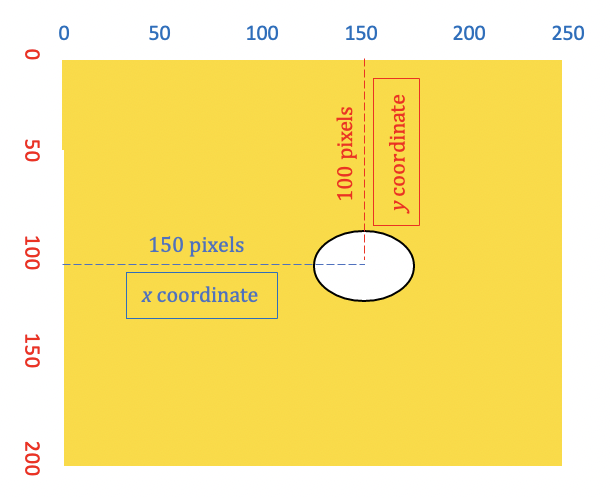 These distances are so helpful for placing images on screen that we give them a special name: coordinates.
A shape's distance from the left edge is called its
These distances are so helpful for placing images on screen that we give them a special name: coordinates.
A shape's distance from the left edge is called its